 Канал на RUTUBE:

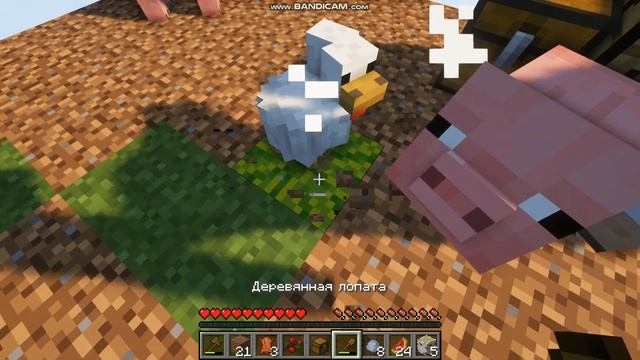
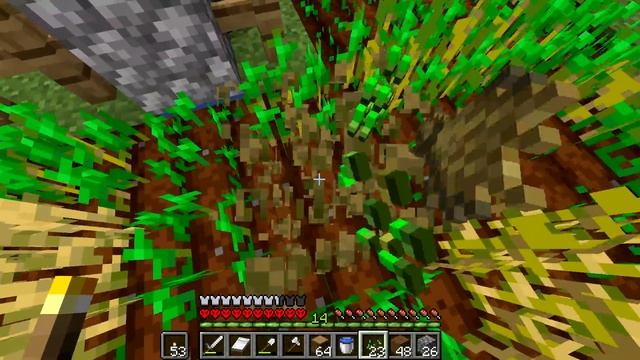
How can you install Minecraft Java Edition? Well in this video we show you exactly how to download Minecraft Java Edition and start playing it on PC.
From how to download the Minecraft Launcher to how to get Minecraft Java and start playing it this video covers it all so lets jump right on into it!
Start a 24-hour DDOS-protected Minecraft server for you and your friends in under 5 minutes with SimpleGameHosting!
Purchase Minecraft:
Minecraft Launcher Download Link:
---------------------------------------------
Join The Discord Support Community:
Subscribe!:
---------------------------------------------
Get Minecraft Mods!:
How To Install Optifine!:
---------------------------------------------
Social
Twitter:
TikTok:
About this video: Minecraft is one of the most popular games of all time and Minecraft Java Edition is the most moddable version of it.
That makes it extremely popular to download.
Luckily you have found our complete guide on how to download Minecraft Java Edition on PC.
This will show you how to buy Minecraft Java Edition how to download Minecraft on PC and how to install Minecraft Java Edition on PC so you can start playing Minecraft Java and experiencing all that it has to offer!
First things first you will need to purchase Minecraft.
You can find a link in the description above to buy Minecraft Java Edition.
It is worth noting that when you purchase Minecraft Java Edition you also get Minecraft Bedrock on PC meaning you are getting both version of game with one purchase.
You will
Minecraft Java Edition is also included in Xbox Game Pass for PC.
This means that if you have Game Pass you already have Minecraft Java Edition.
Just make sure you login to the Minecraft Launcher using the Xbox account with Game Pass.
Once you have purchased Minecraft Java Edition we need to download the Minecraft Launcher.
There are two ways to do this - the Xbox App and the Microsoft Store.
The link in the description above will take you through the process of downloading Minecraft Java Edition with the Xbox App.
When you click the link select to get Minecraft log in to your Microsoft account and click Get again you will go to the Xbox App.
From there click Install and the Minecraft Launcher will install.
Click Play and it will launch.
My preferred method of getting the Minecraft Java Edition Launcher though is actually using the Microsoft Store.
To download Minecraft Java Edition with the Microsoft Store open the Microsoft Store App on your PC.
Then search for the Minecraft Launcher.
It will pop-up.
Click it and click the Install button.
Minecraft Java Edition will start downloading on PC.
You can now open the Minecraft Launcher using the Start Menu.
Then login to the Microsoft Account that you purchased Minecraft through.
When you do you will see Minecraft Java Edition on the left-hand side.
Click that and you will see a Play button.
Click the Play button and Minecraft Java Edition will open.
With that you now know how to download and install Minecraft Java Edition on PC.
If you have any questions about how to get Minecraft on PC let us know in the comments.
We will try our best to help you out.
Otherwise if we did help you learn how to buy Minecraft Java Edition please give this video a thumbs up and subscribe to the channel fi you havent already.
It really helps us out and it means a ton to me.
Thanks in advance!
Note: Some of the above links are affiliate links or companies I have an ownership stake in.
I may receive a commission at no additional cost to you if you go to these sites and make a purchase.
Источник: rutube.ru