 Канал на RUTUBE:

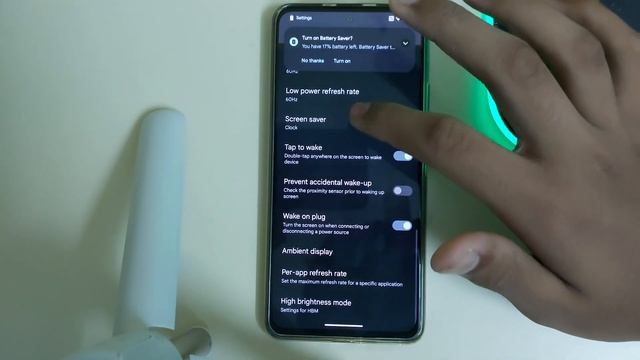
In this video we will go through all of the Gmail Settings on Android Devices.
Change your Gmail settings
You can add an email signature choose which emails you get notified about or change other settings.
Get to the settings page
- On your Android phone or tablet open the Gmail app Gmail.
- In the top left tap Menu Menu.
- Tap General settings or the account you want to change.
Settings you can change
Note: Some Gmail settings can only be changed on a computer.
General settings
Any settings you change here apply to all the Google Accounts youve added to your Gmail app.
- Default notification action: Make Delete or Archive the default action that appears at the bottom of an expanded Gmail notification from your devices notification bar.
- Conversation view: When this setting is on all messages in an email thread are grouped together.
- Swipe actions: When this setting is on swipe left or right on a message in your messages list to delete it.
From the general settings you can change the right- or left- swipe to: archive delete mark as readunread move to a label or snooze messages.
By default you can swipe messages to the left or right to delete them depending on which setting you chose as your default action.
- Sender image: When this setting is on select a senders photo to select a message.
When this setting is off touch and hold a message to select it.
- Default reply action: Choose to reply to everyone in the conversation or only to the last sender.
- Auto-fit messages: When this setting is on messages are resized to make them easier to read.
- Auto-advance: When youre done with an email choose to advance to older messages newer message or the conversation list.
- Open weblinks in Gmail: When this setting is on links will open in your Gmail app for faster browsing.
- Action confirmations: Ask for confirmation before some actions.
You can ask to confirm deleting messages archiving messages or sending messages.
- Gmail account settings
If you have multiple accounts any settings you change here only apply to the account you selected.
- Inbox type: Choose between Default Inbox and Priority Inbox.
Inbox categories: Choose your categories.
- Notifications: Choose your notification settings.
- Inbox sound vibrate: Choose sound and vibration settings.
- Signature: Create a Gmail signature.
- Vacation responder: Create an out of office message.
- Smart Reply: When this setting is on suggested replies might appear at the bottom of emails.
- Sync Gmail: When this setting is on youll get notifications and new emails automatically.
When this setting is off you have to pull down from the top of your inbox to refresh.
- Days of mail to sync: Choose the number of days of mail that you want to automatically sync and store on your device.
Any messages that arent synced wont be able available offline.
- Manage labels: Choose notification and sync settings for different labels.
- Download attachments: When this setting is on attachments are automatically downloaded if youre on Wi-Fi.
If this setting is off you can still download attachments manually.
- Images: When this setting is on images are shown inside of your messages.
Источник: rutube.ru